Using a Computer?
Show instructions for Windows and Mac devices.
How to Start Remote Support on PC
We use TeamViewer, the world's most popular and secure remote support software.

Download the App
Click the button below to download the small utility program.
Download TeamViewer QSVersion: Windows (QuickSupport)
Secure Remote Connection
- One-time Password: Connection requires your explicit permission.
- Full Transparency: See everything happening on screen in real time.
- Instant Disconnect: Close the session anytime with 1 click.
We're glad to guide you: 045 7833 8105
Want to download a different version or visit the official site?
TeamViewer Official Download PageDownload TeamViewer QS
Click the Download TeamViewer QS button. The file TeamViewerQS.exe will appear in your browser's download area or your Downloads folder.
Open the file & allow it to run
Click the downloaded TeamViewerQS.exe to open it. If Windows asks "Do you want to allow this app to make changes?", click Yes.
Accept the terms
The TeamViewer QuickSupport window opens. Tick "I accept the End User License Agreement" and click Continue.
Share your ID & Password
The app shows your ID and Password. Read both to your DigiKaveri helper over the phone so they can establish the connection.
You're connected!
The window will show Ongoing session. Your DigiKaveri helper can now see your screen and guide you. You can close the session at any time by clicking Close session.
Video Guide (Windows)
Windows Visual Manual
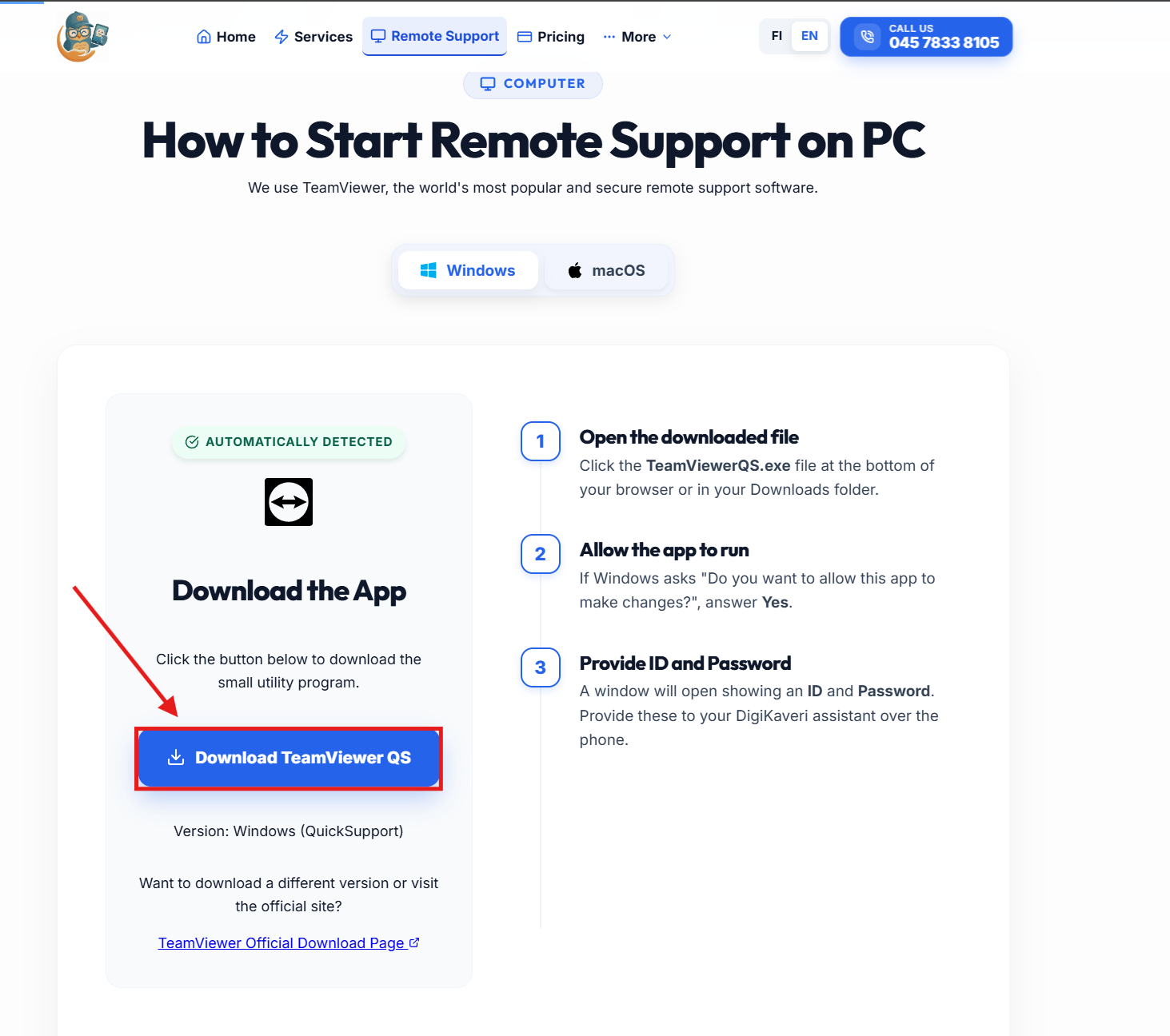
Click Download TeamViewer QS
First, click Download TeamViewer QS to start the download.
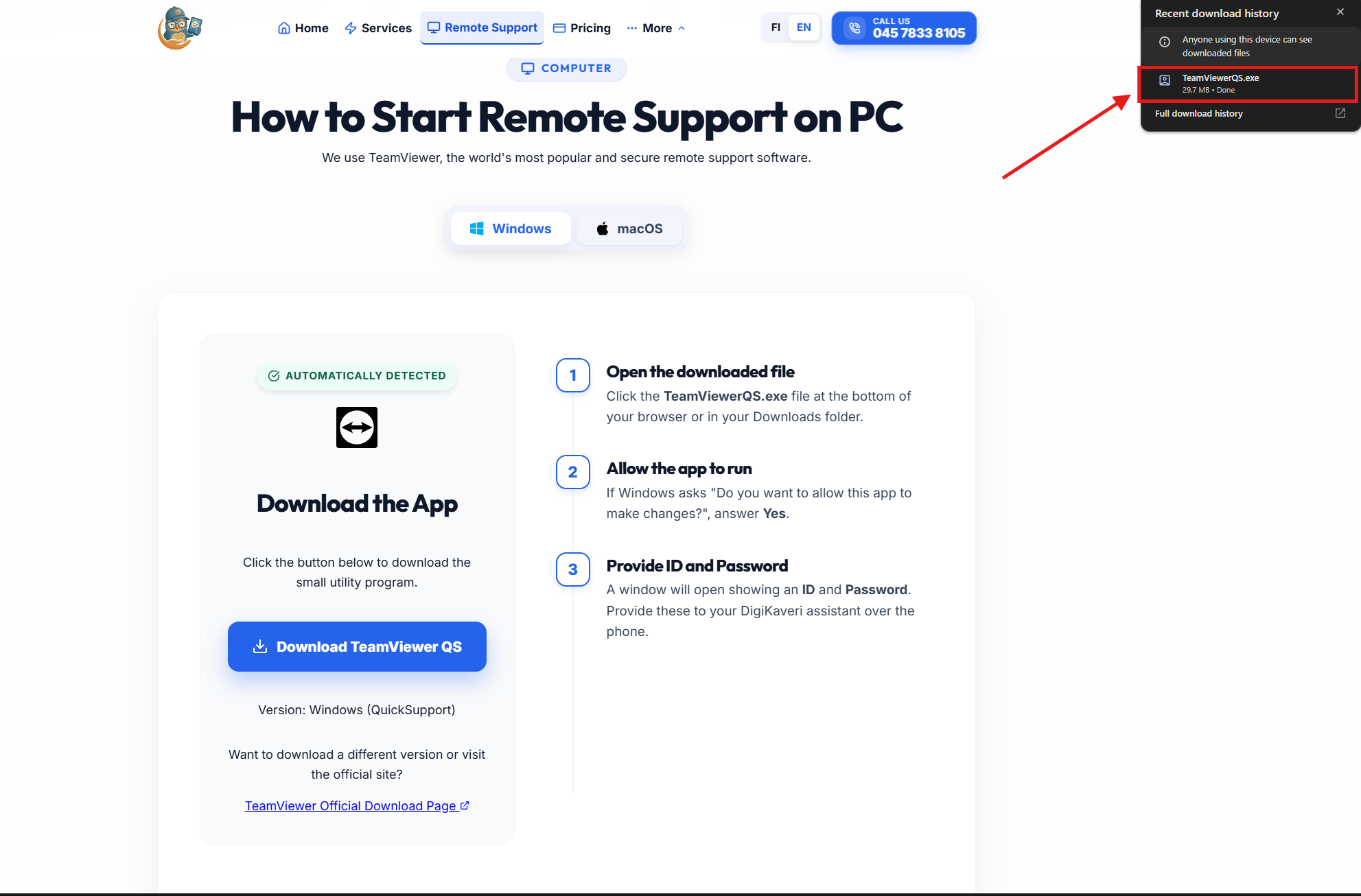
Open the App
Once downloaded, open the TeamViewerQS.exe file. You'll find it in your browser's download area or your Downloads folder.
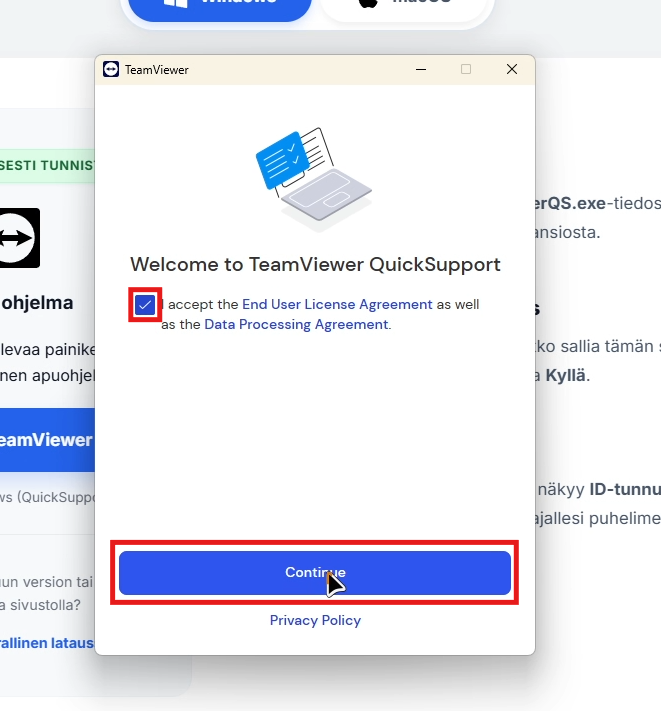
Accept Terms
Once the app has opened, accept the terms and conditions by clicking "Accept" or "Continue".
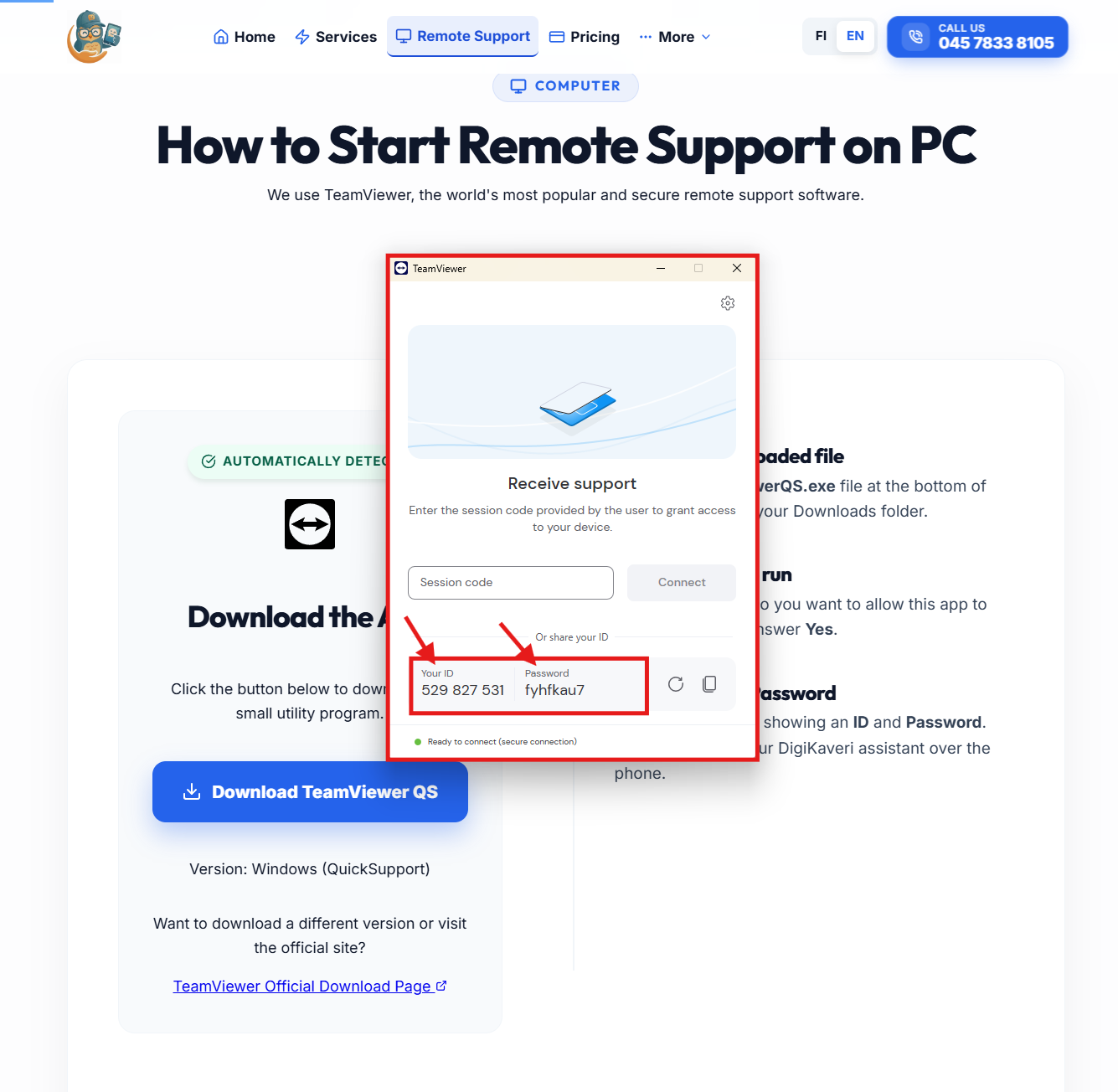
ID and Password
After that, you will see an ID and a Password on your screen. Share these with DigiKaveri Support so we can assist you via remote connection!
Connection Successful
When a small TeamViewer window appears in the bottom right corner of your screen, it means DigiKaveri has successfully connected to your computer. Your support person will take it from here.
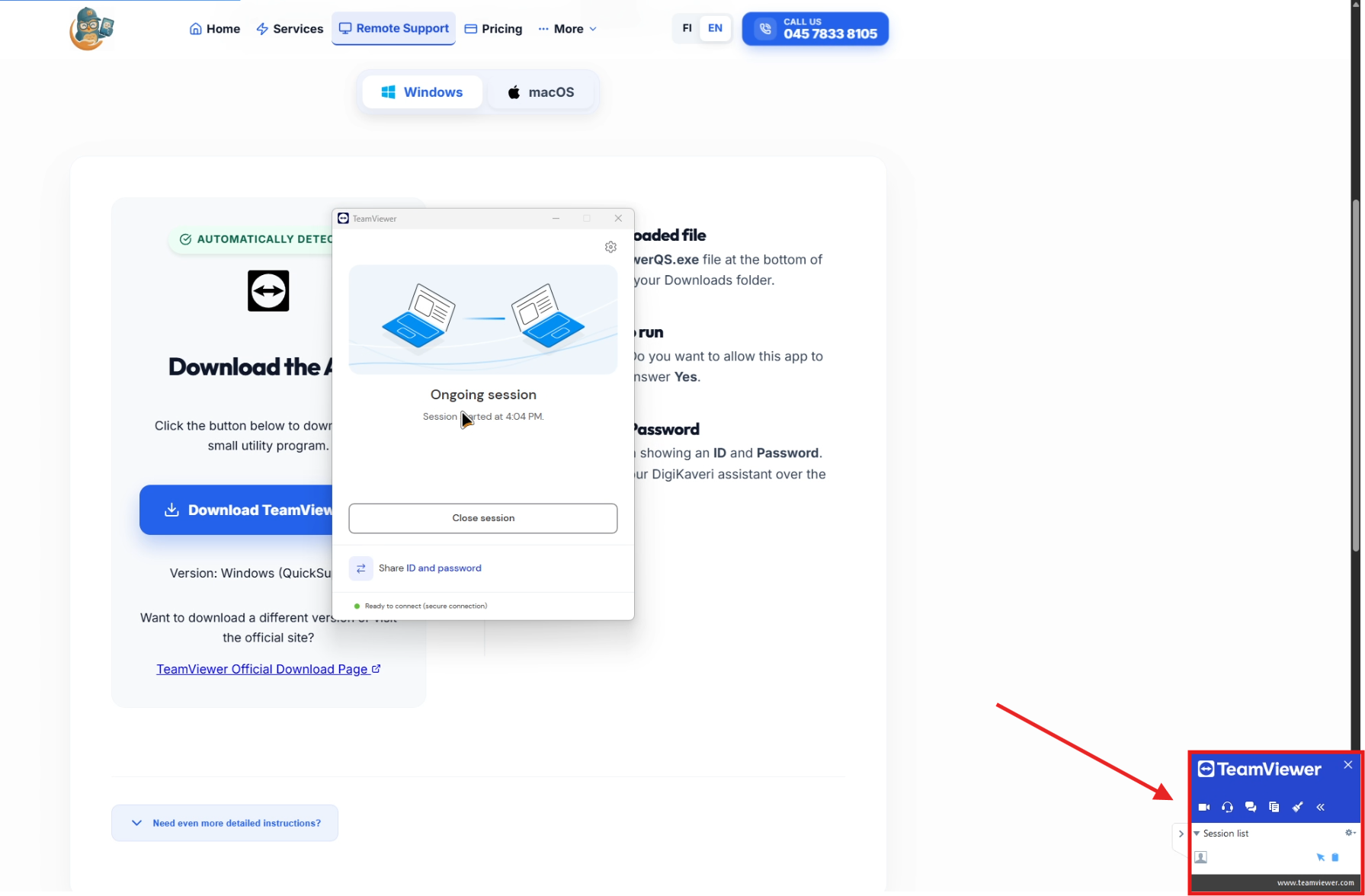
Security Notice: The connection is one-time only. Once you close the program, we cannot access your computer without a new ID and password, which change every time.
Need help on a Phone?
Show instructions for Android and iPhone devices.
Phone & Tablet
Download the app and provide the ID to our technician.

Android Guide
Download the QuickSupport app from the Google Play Store to get started.

Secure Remote Connection
- One-time Password: Connection requires your explicit permission.
- Full Transparency: See everything happening on screen in real time.
- Instant Disconnect: Close the session anytime with 1 click.
We're glad to guide you: 045 7833 8105
Want to download a different version or visit the official site?
TeamViewer Google Play StoreInstall TeamViewer QuickSupport
Open Google Play, search for TeamViewer QuickSupport and tap Install. Once done, tap Open.
Accept terms & grant permissions
Tap through the welcome screens and choose Agree and continue. When prompted, allow notifications and display over other apps so remote support can function.
Share your ID
The app displays Your ID (a 9-digit code). Read this to your DigiKaveri helper over the phone so they can connect to your device.
Verify & allow access
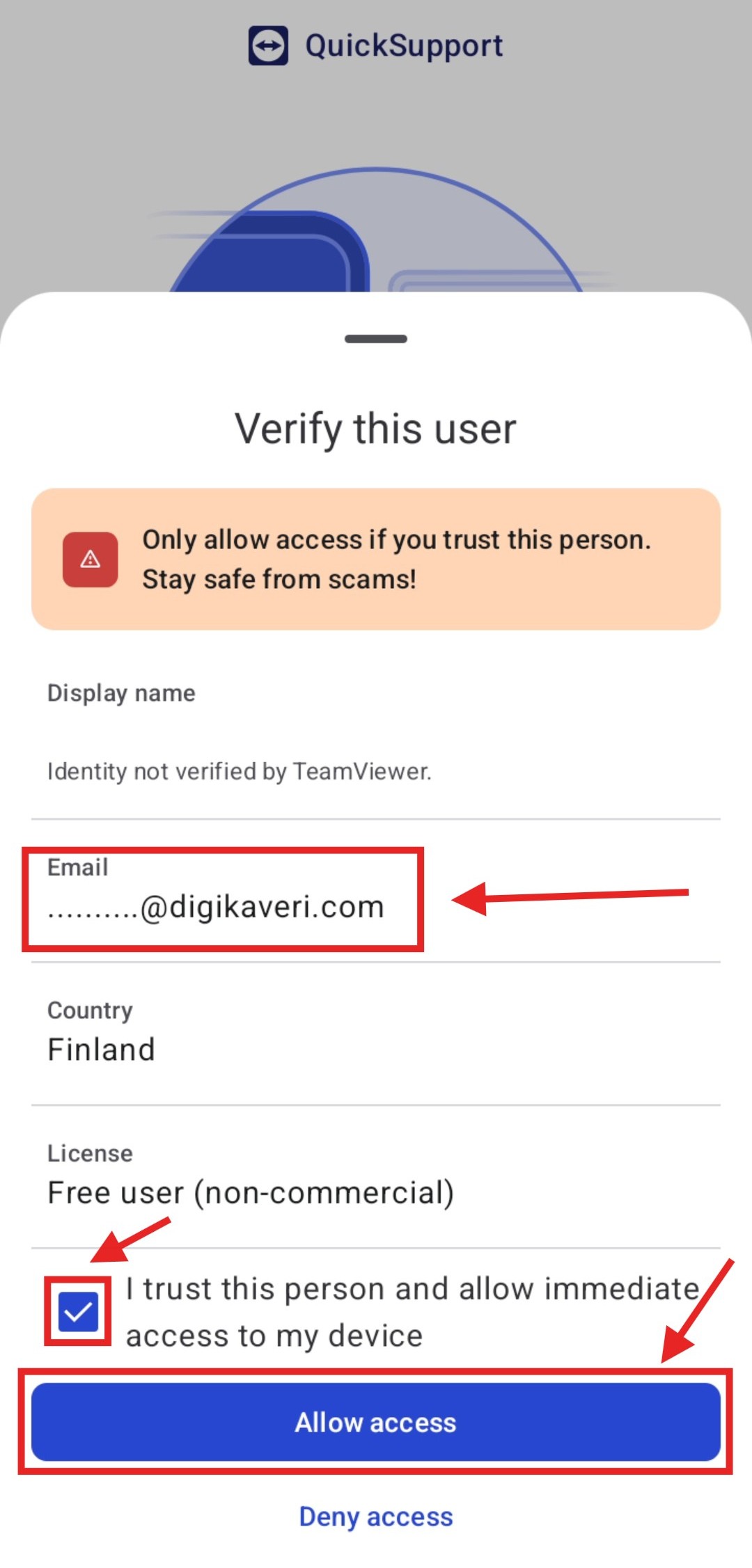
When the connection request arrives, check that the email address ends with @digikaveri.com, check "I trust this person" and tap Allow access. Then tap Start to begin screen sharing.
You're connected!
Your screen is now visible to the DigiKaveri helper. If the app asks you to install an add-on or grant accessibility access, our helper will clearly guide you through each step over the phone.
Video Guide (Android)
Android Visual Manual
Open the DigiKaveri Guide
On the DigiKaveri website, tap Download on Google Play to open the app in the Play Store.
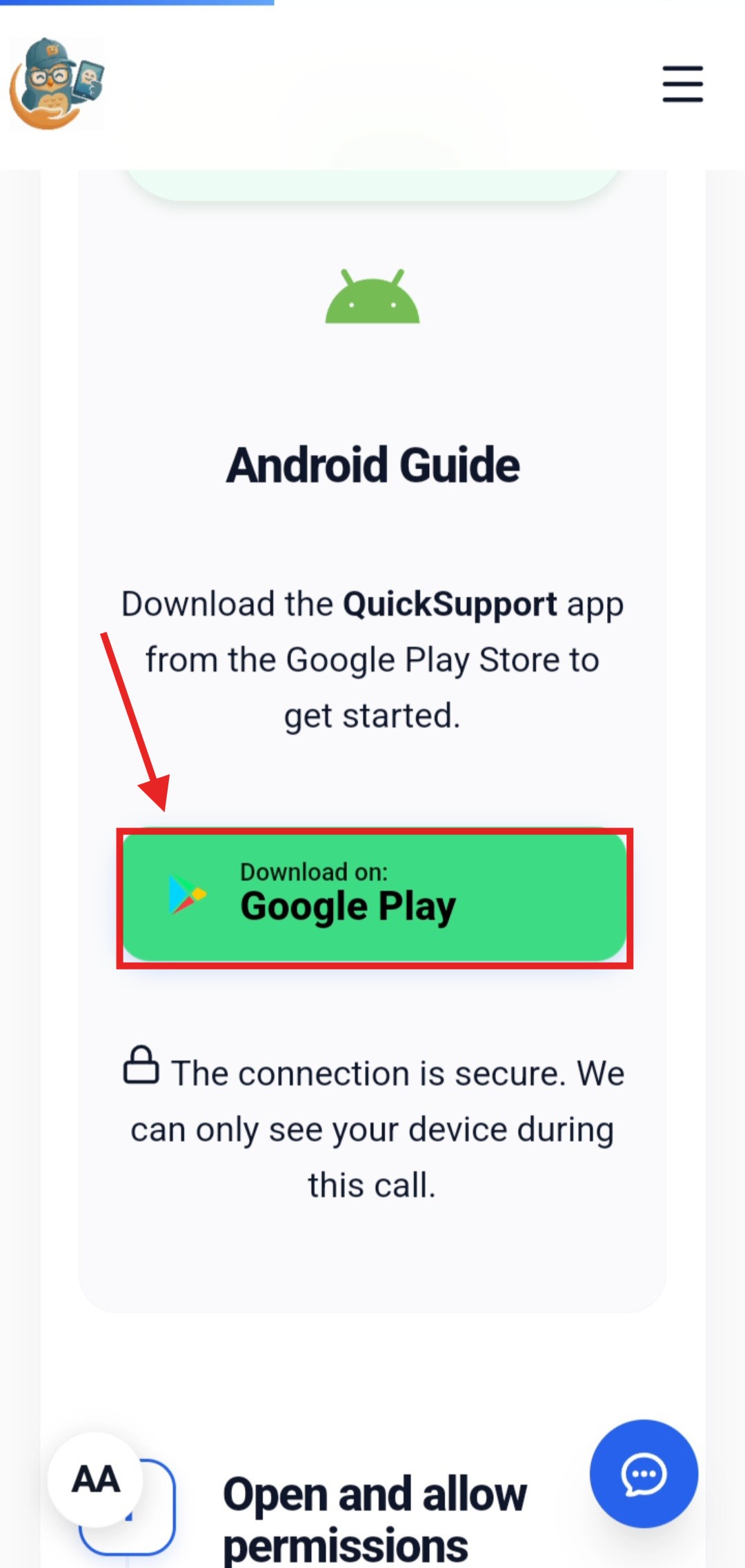
Install TeamViewer QuickSupport
The TeamViewer QuickSupport app page opens in Google Play. Tap Install to download it.
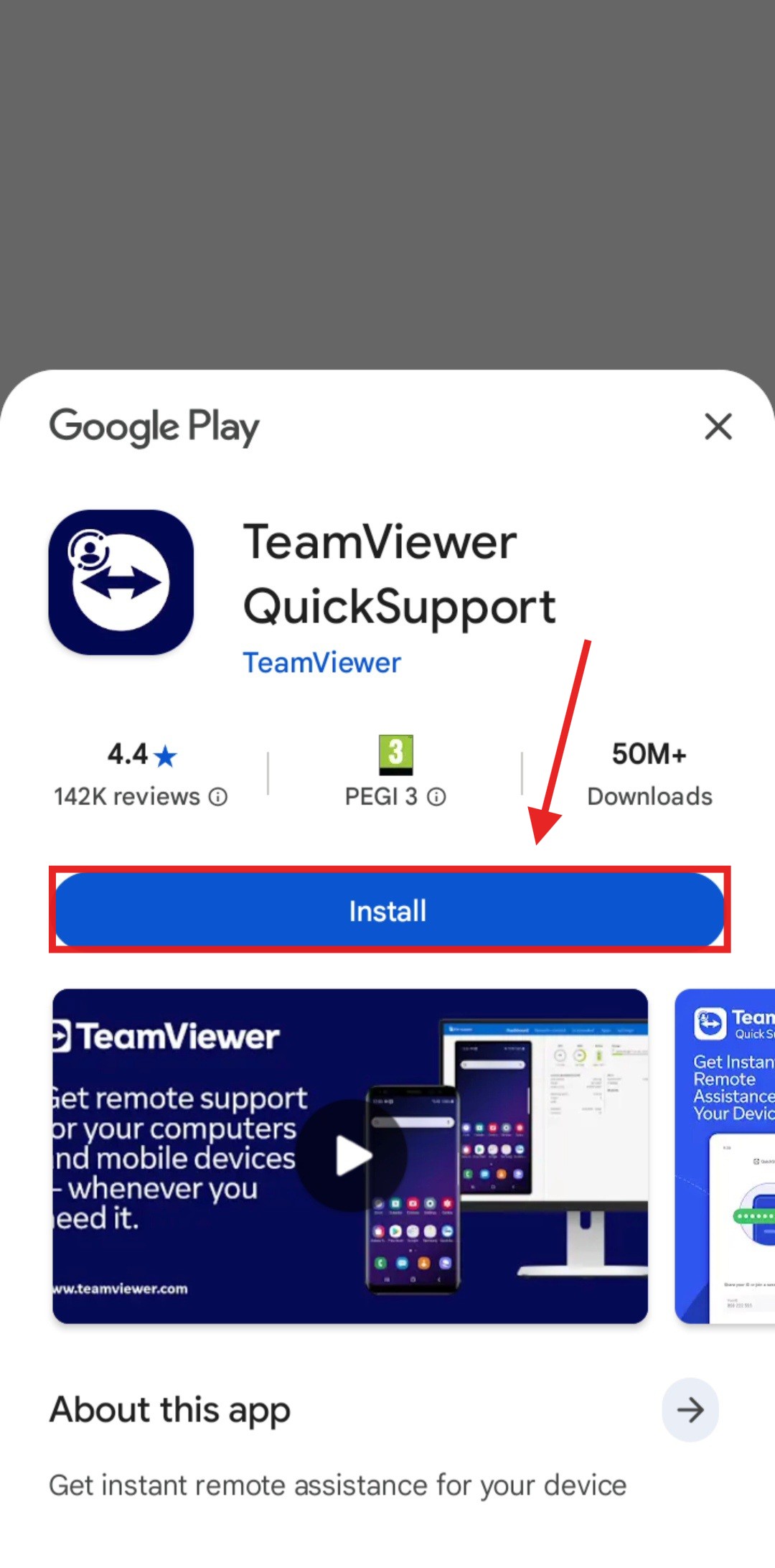
Open the App
Once installed, tap Open to launch TeamViewer QuickSupport.
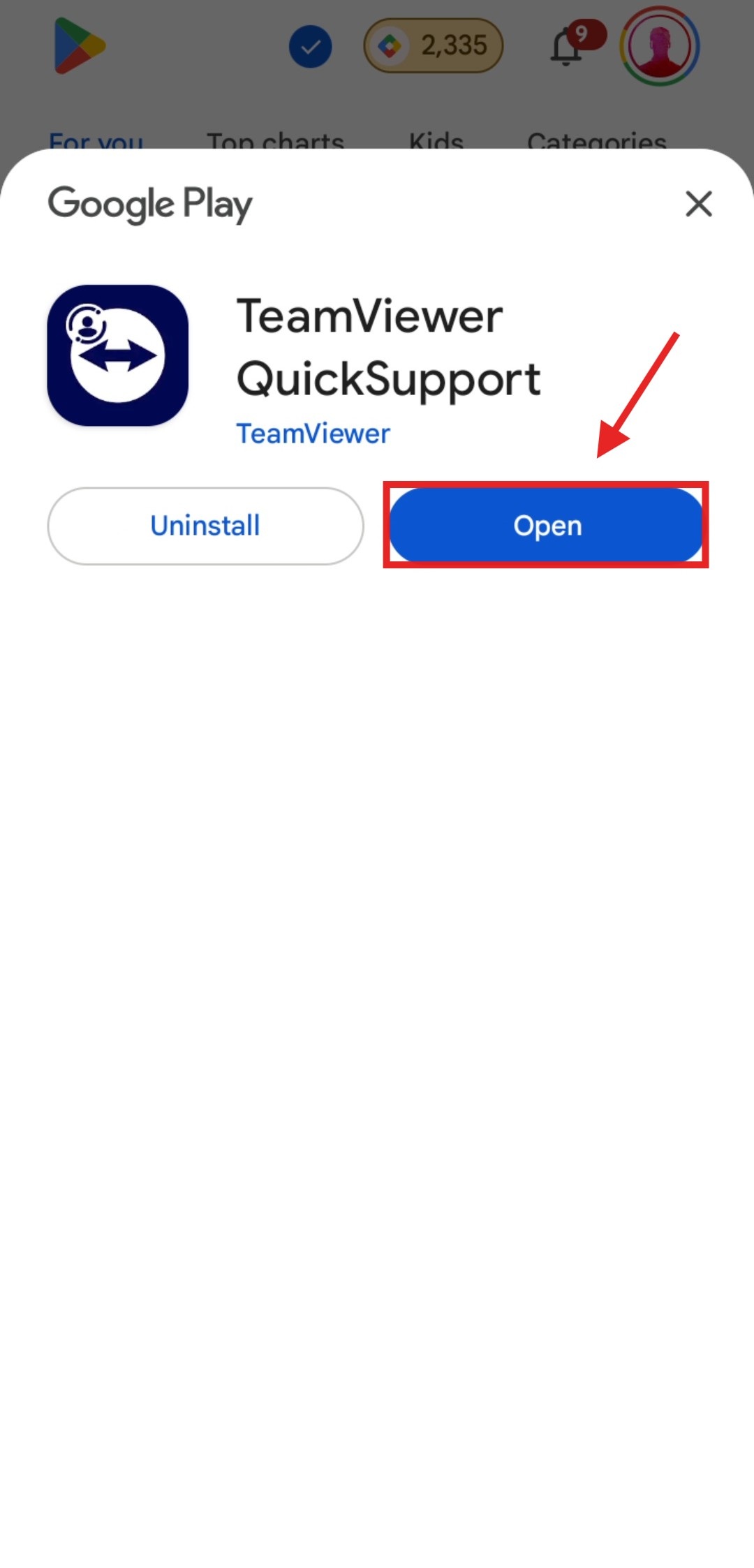
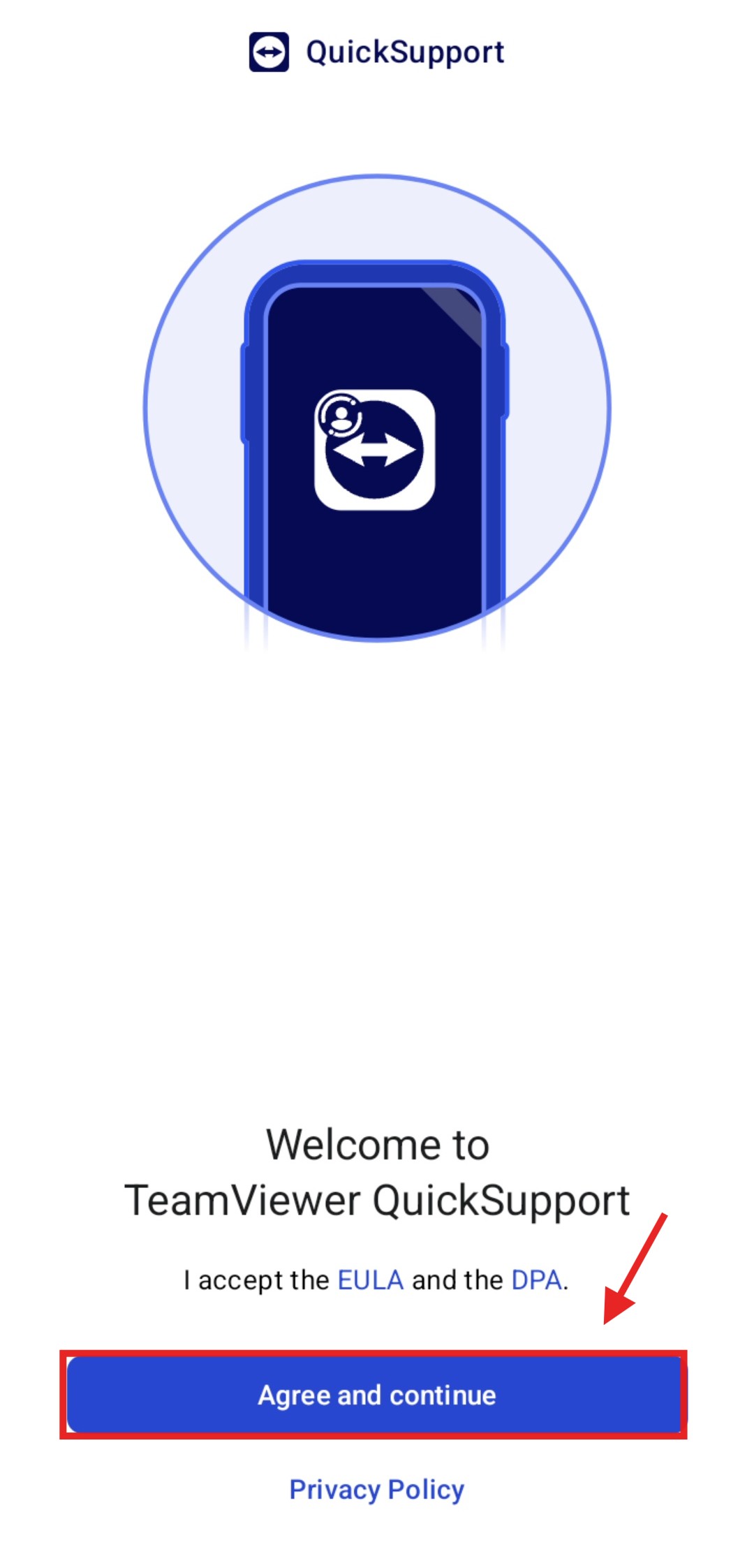
Accept Terms and Continue
The Welcome screen appears. Tap Agree and continue to accept the EULA and Data Processing Agreement.
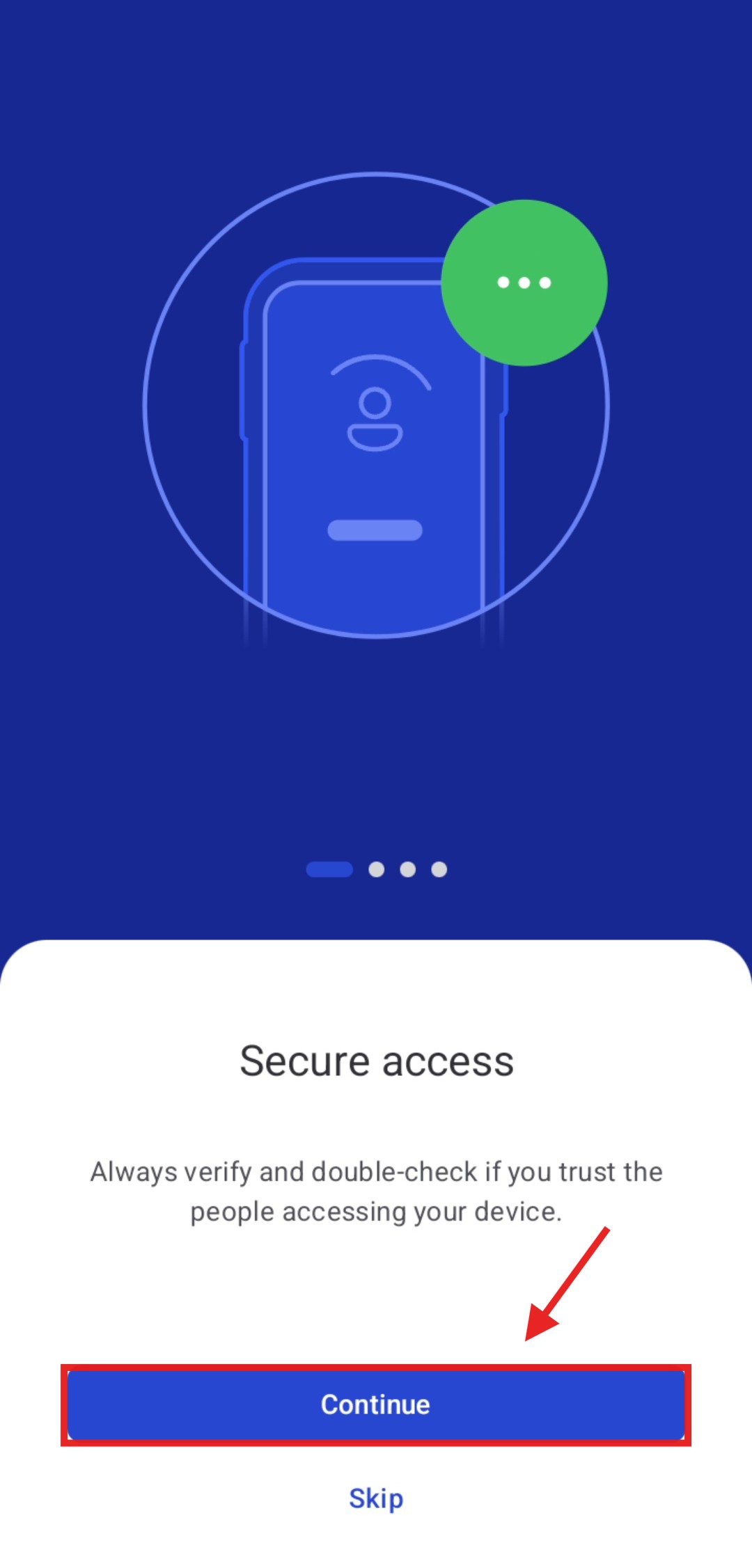
Secure Access Info
The app shows a Secure access reminder to verify you trust the person before granting access. Tap Continue.
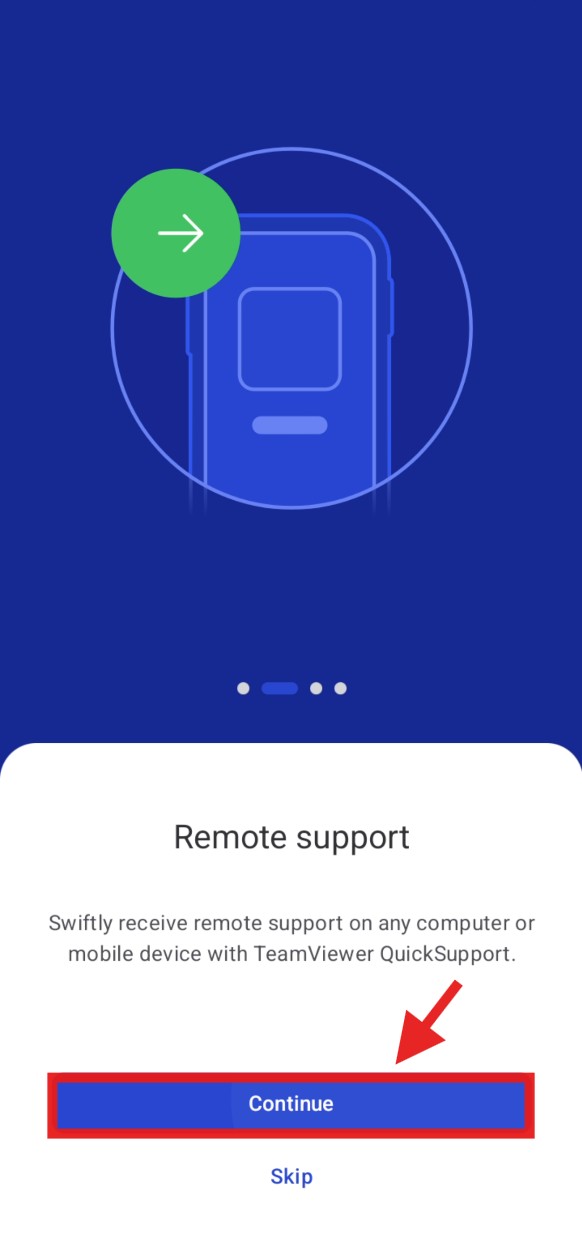
Remote Support Info
The app explains Remote support, allowing you to receive IT help on any device. Tap Continue.
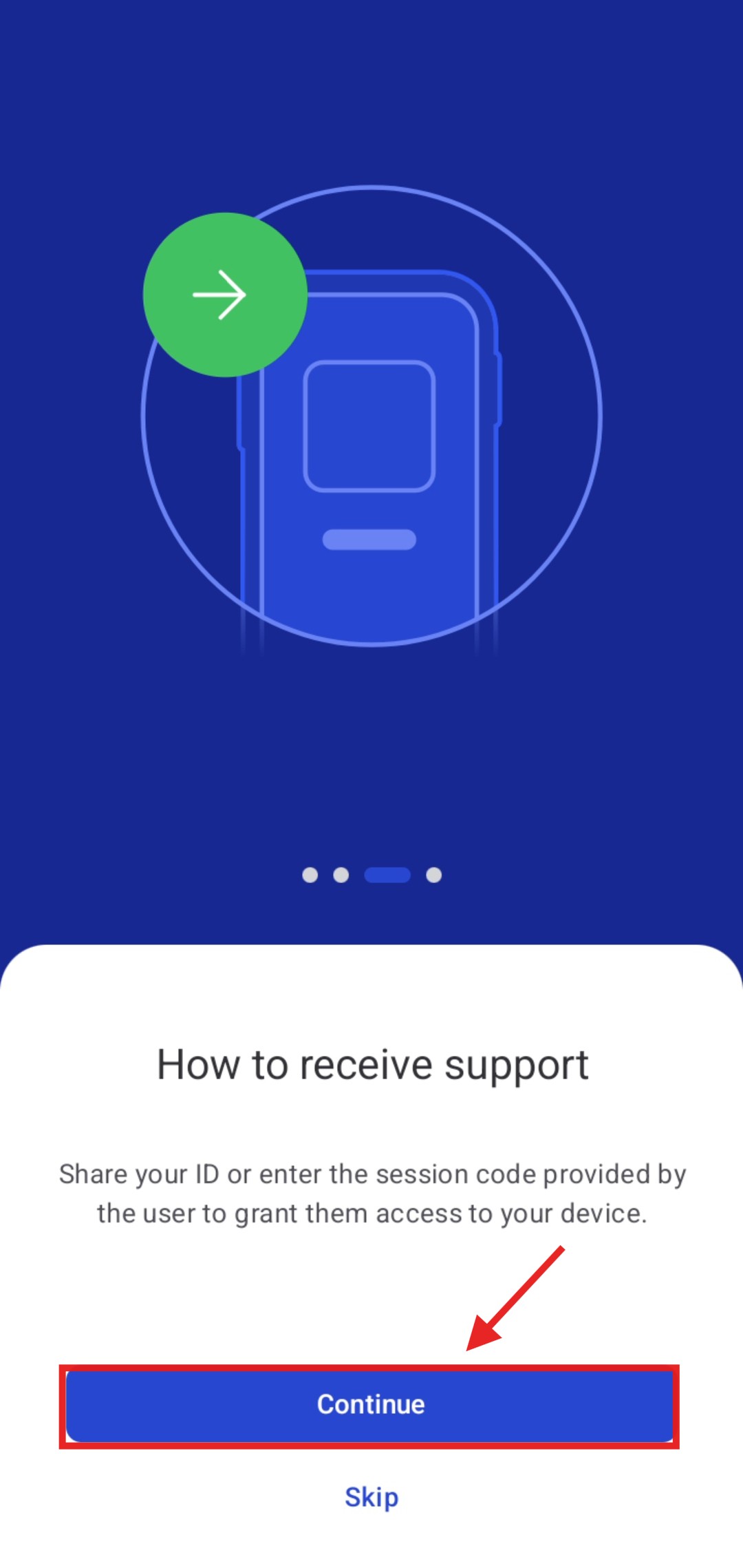
How to Receive Support
The app explains how to share your ID or session code. Tap Continue.
File Transfer Info
The app introduces File transfer, which lets files be shared during the session if needed. Tap Let's get started!
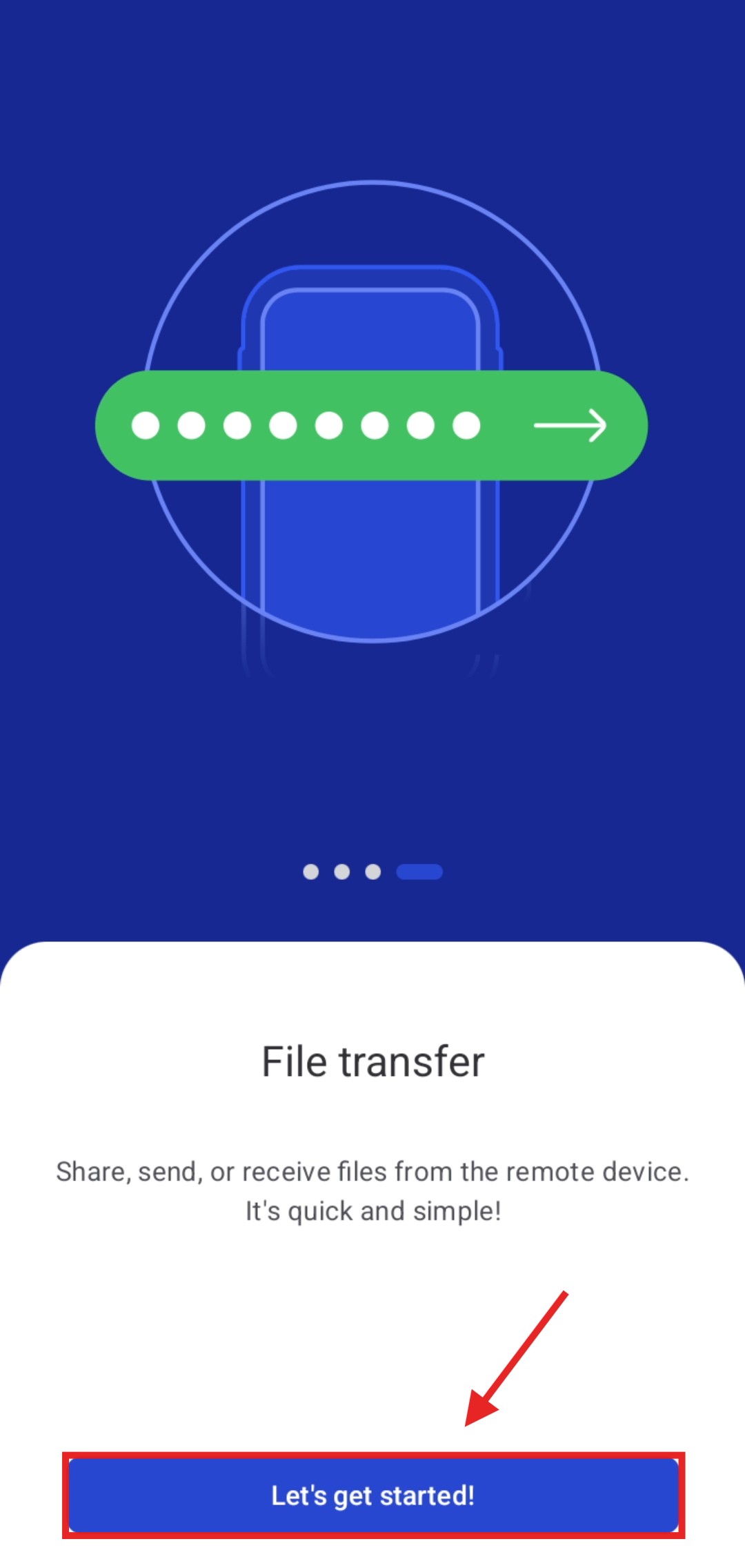
Allow Notifications
The app asks permission to send notifications. Tap Allow so you receive session alerts.

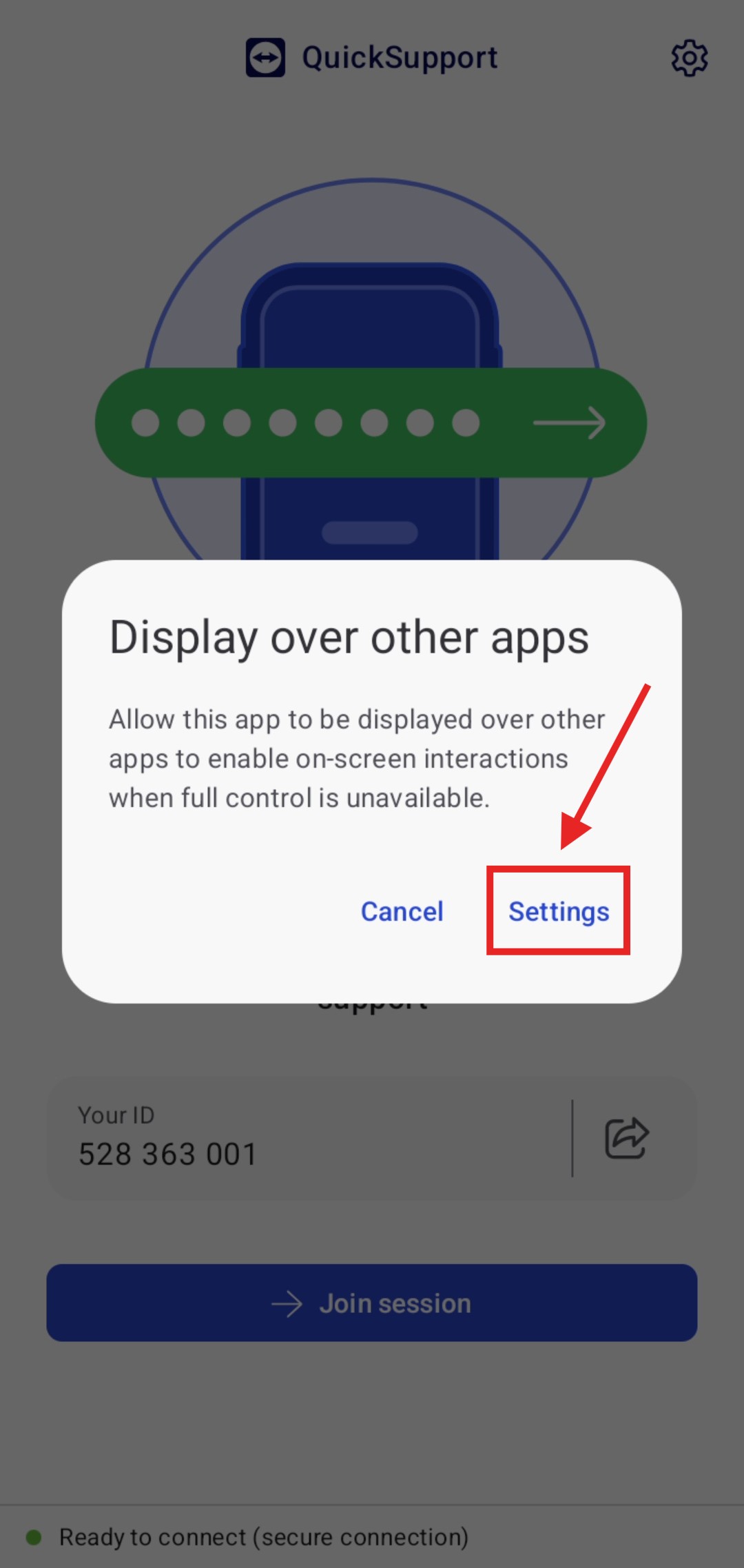
Allow Display Over Other Apps
Tap Open settings to permit the app to display over other apps during the support session.
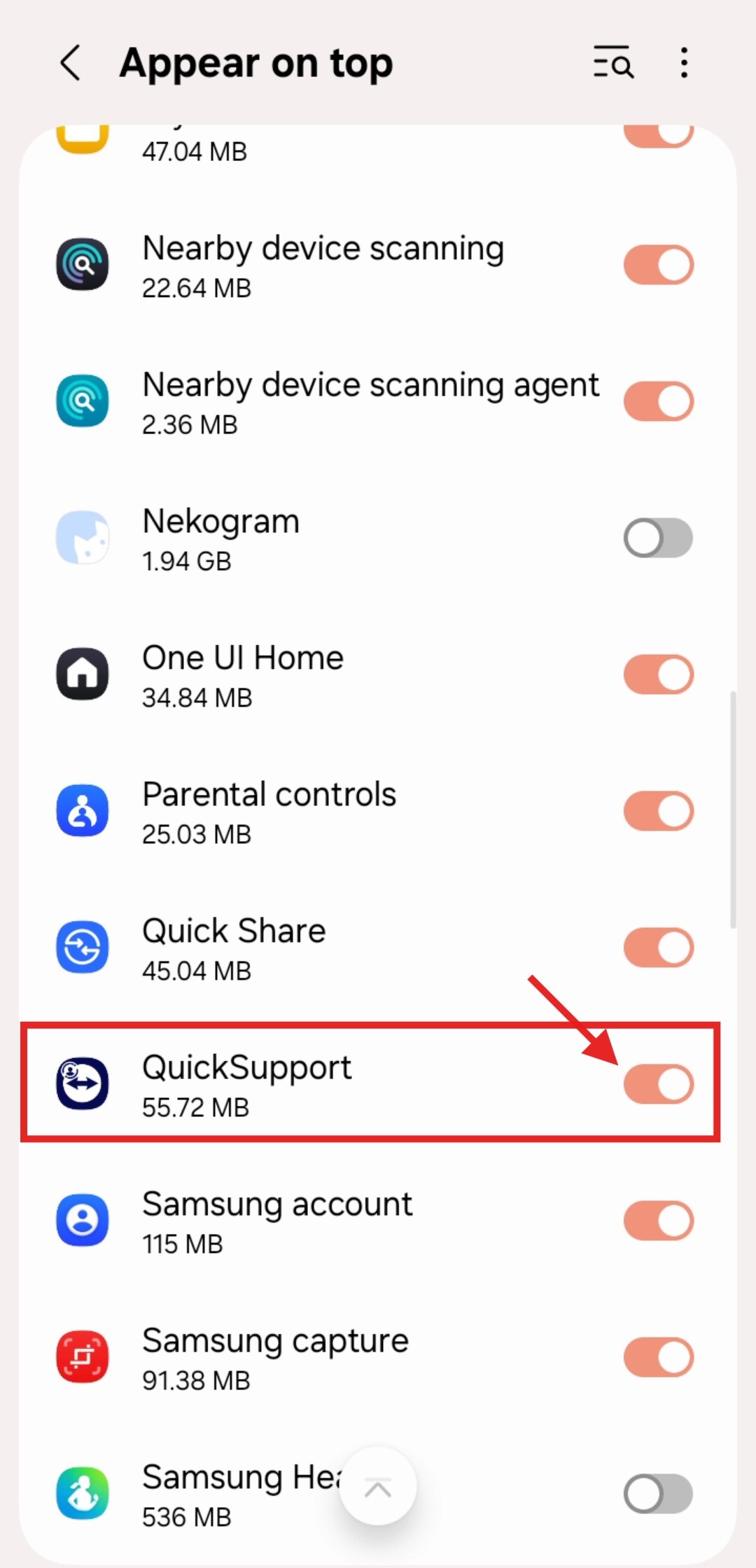
Enable Permission for QuickSupport
Find QuickSupport in the list and toggle the switch to On (blue).
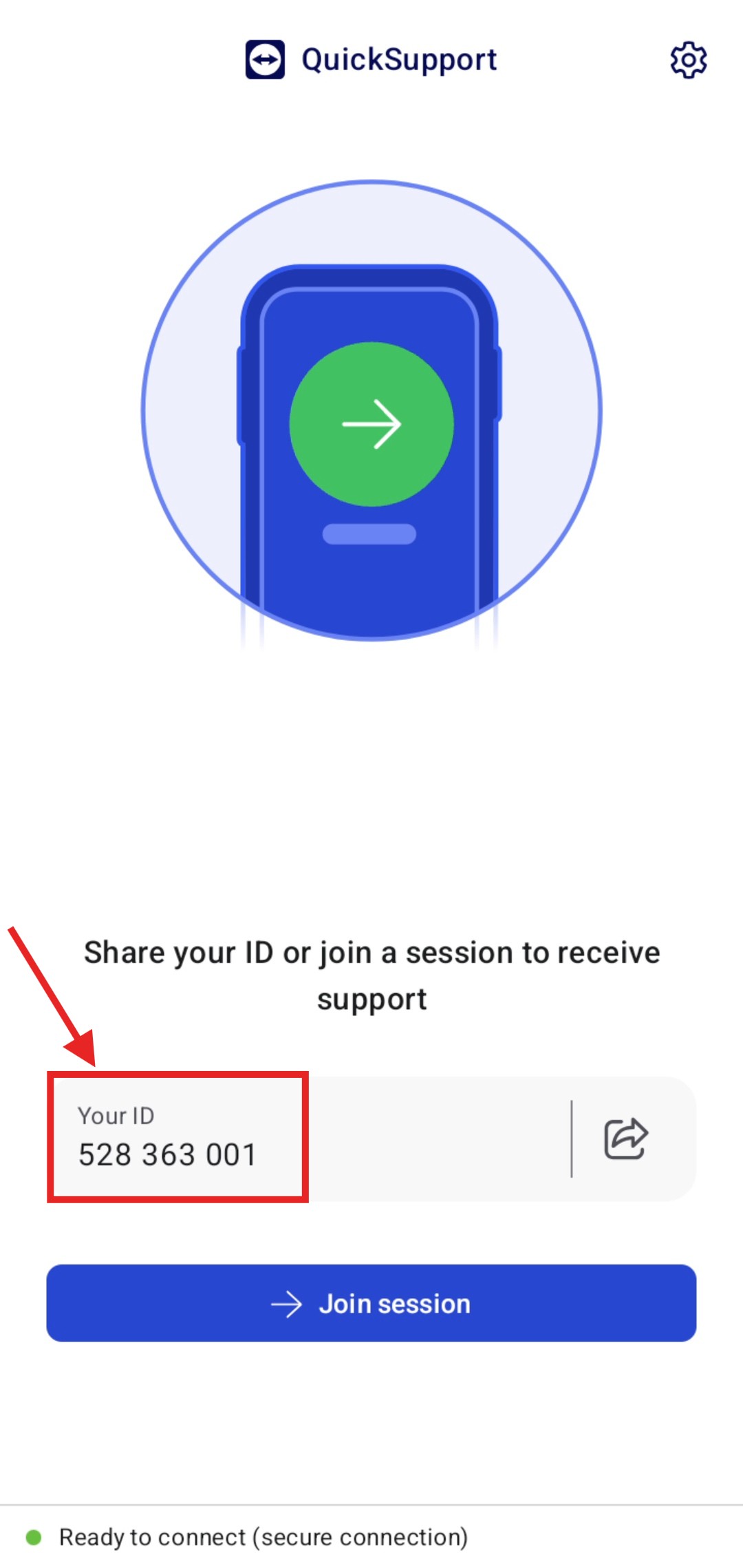
Your ID Main Screen
The main screen opens and displays Your ID. Read this code to your DigiKaveri support person over the phone.
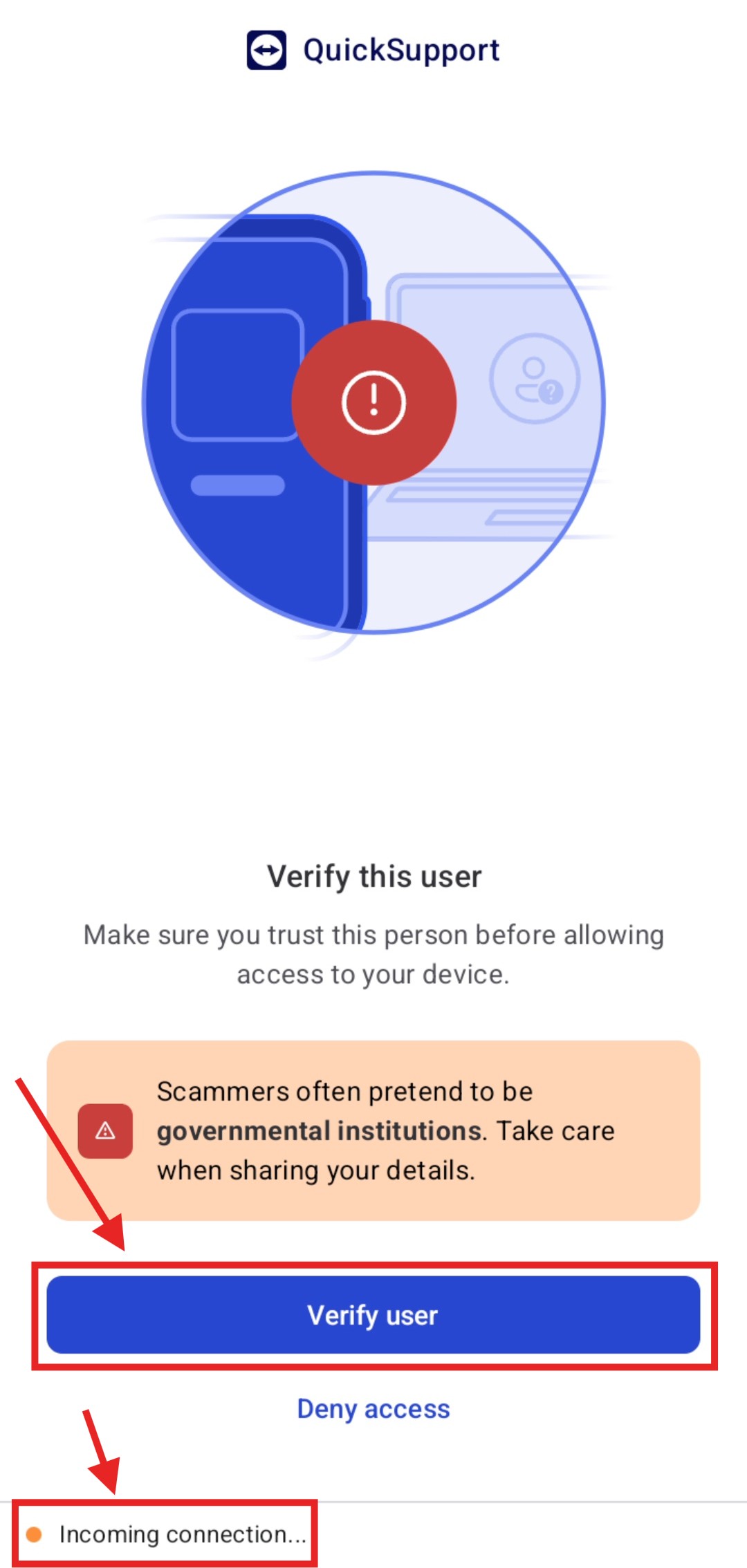
Incoming Connection: Verify the User
When DigiKaveri initiates the connection, a Verify this user screen appears. Make sure you trust the person, then tap Verify user.
Confirm DigiKaveri's Identity
Check that the email shown ends with @digikaveri.com. Tick "I trust this person" and tap Allow access.
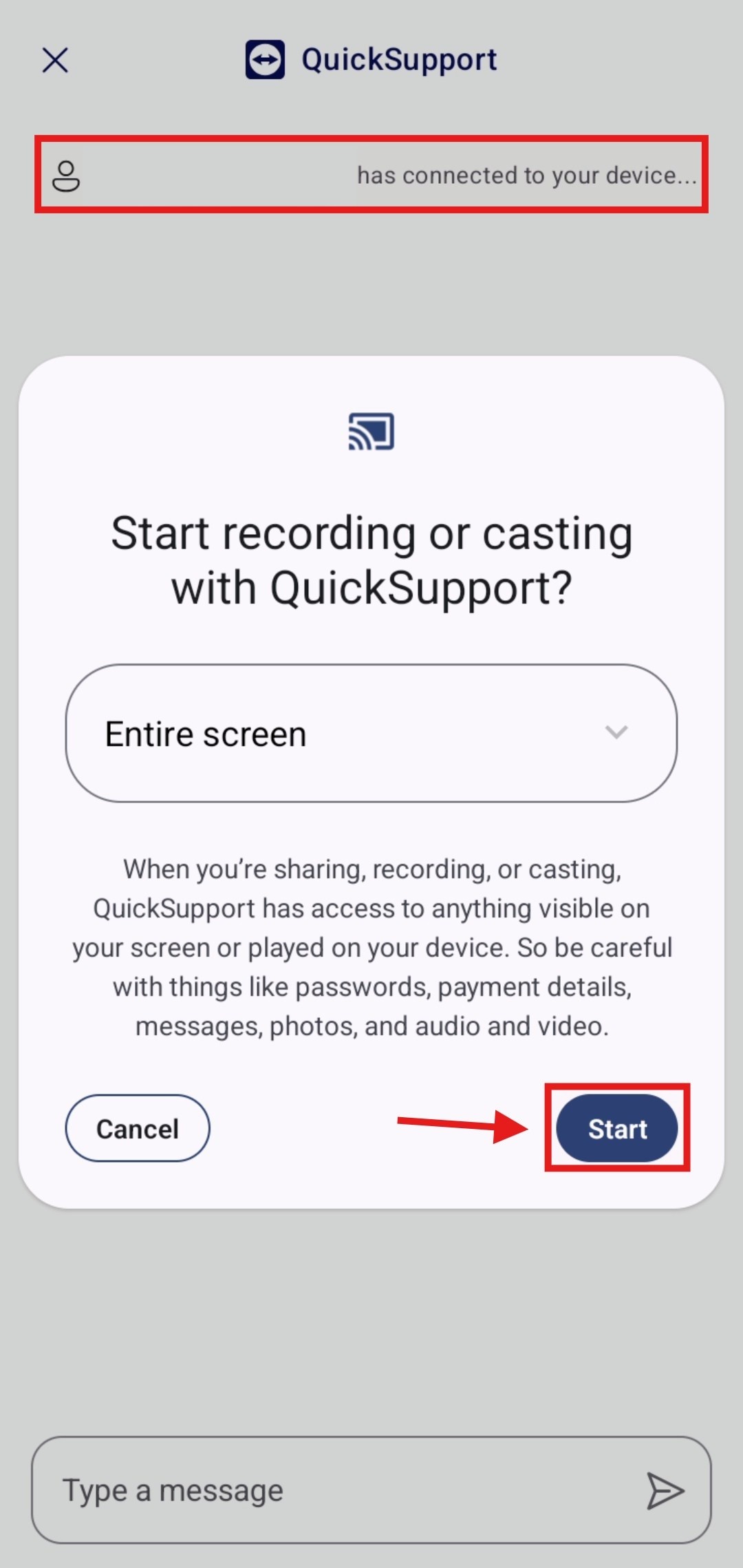
Start Screen Sharing
A Start recording or casting dialog appears. Leave it on Entire screen and tap Start.
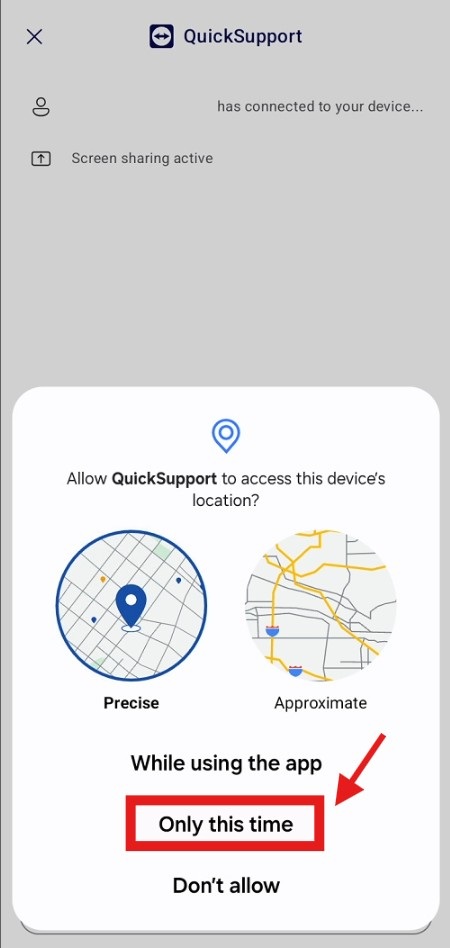
Allow Location (Optional)
The app may ask for your location. You can tap Only this time, as this is optional and does not affect your support.
Install TeamViewer Add-On
A dialog appears: Install TeamViewer add-on. This is needed for full remote control. Tap Install.
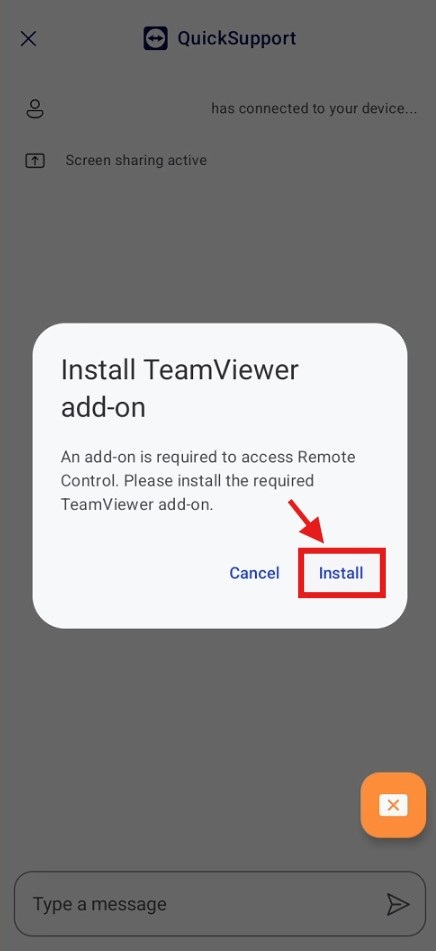
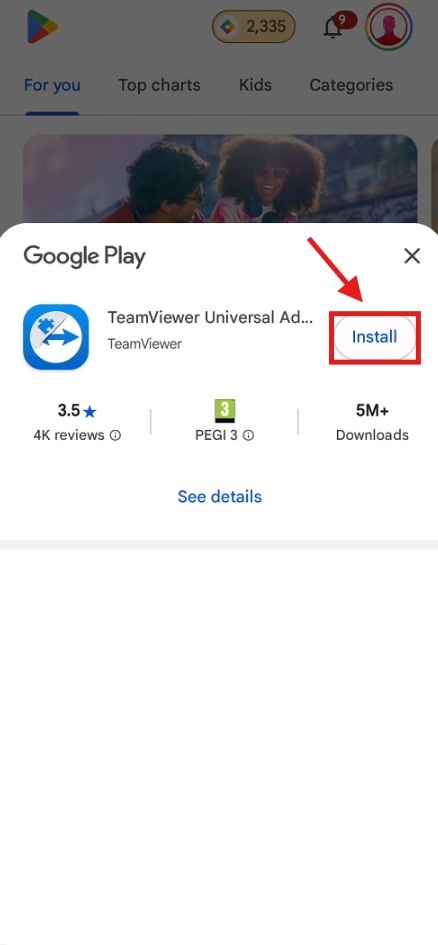
Install TeamViewer Universal Add-On
Google Play opens with the TeamViewer Universal Add-On. Tap Install to download it.
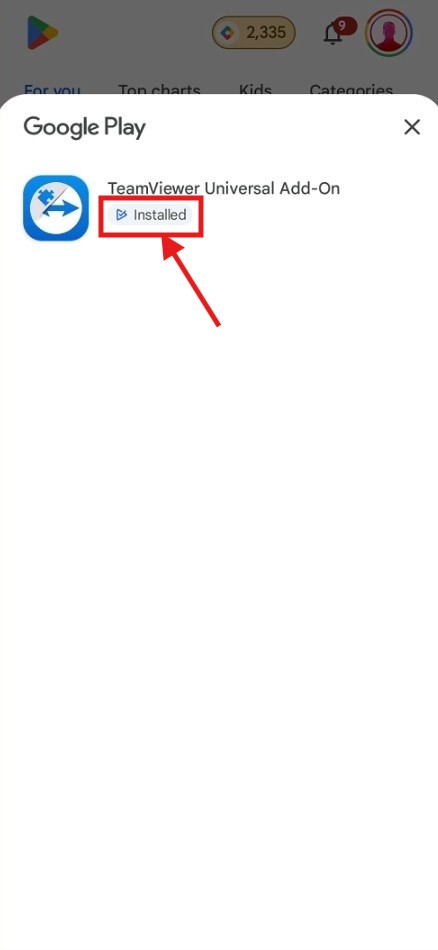
Add-On Installed
The TeamViewer Universal Add-On now shows as Installed. Go back to the QuickSupport app.
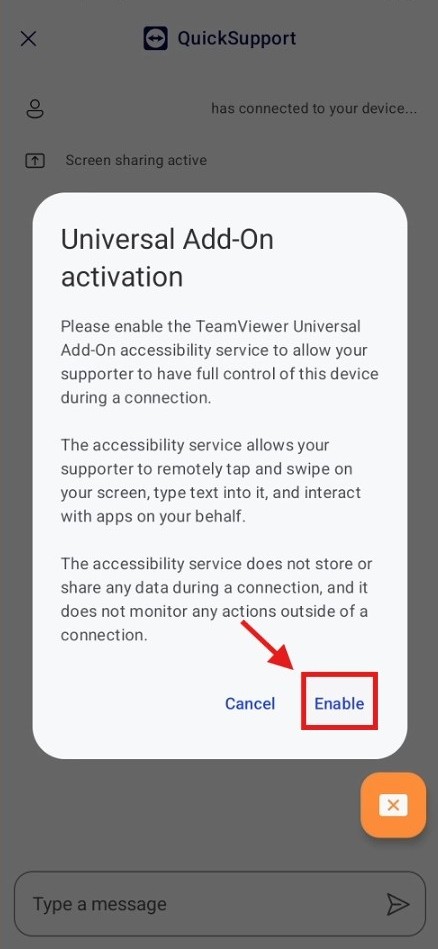
Enable the Universal Add-On
A dialog explains the Universal Add-On activation, which enables full remote navigation during the session. Tap Enable.
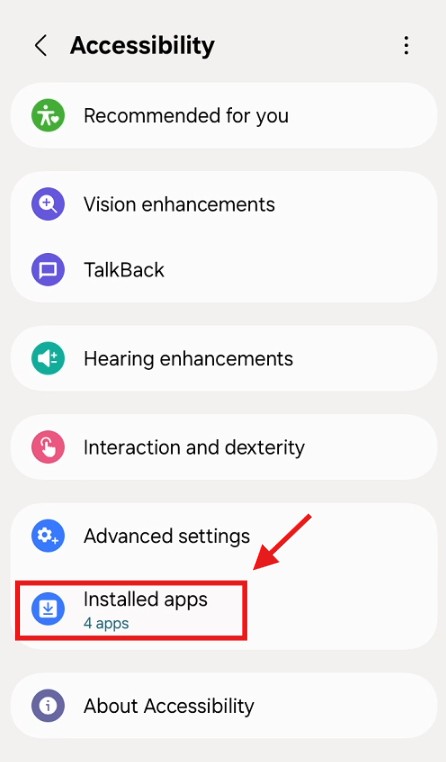
Open Accessibility > Installed Apps
Your phone's Accessibility settings open. Tap Installed apps to find the add-on.
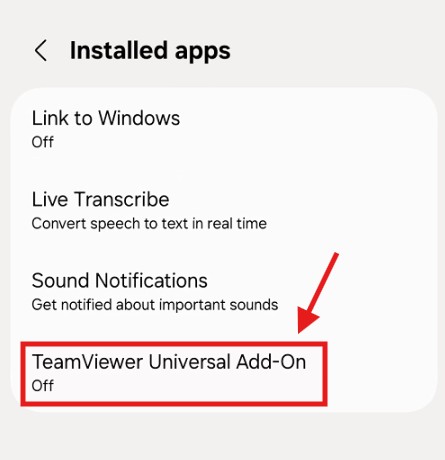
Tap TeamViewer Universal Add-On
In the Installed apps list, tap TeamViewer Universal Add-On to open its settings.
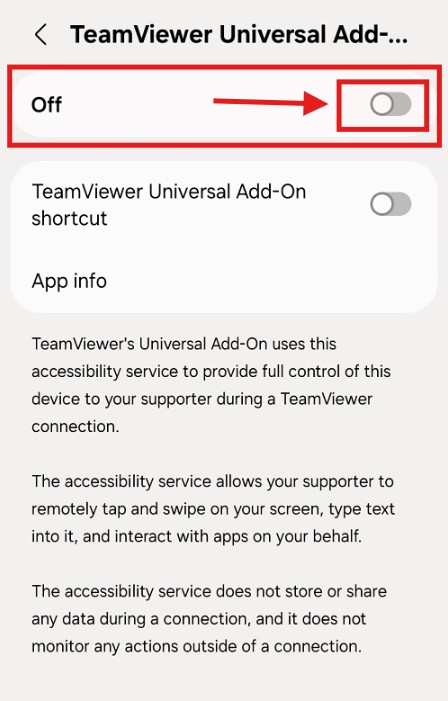
Turn On the Add-On
The add-on is currently Off. Tap the toggle to turn it On.
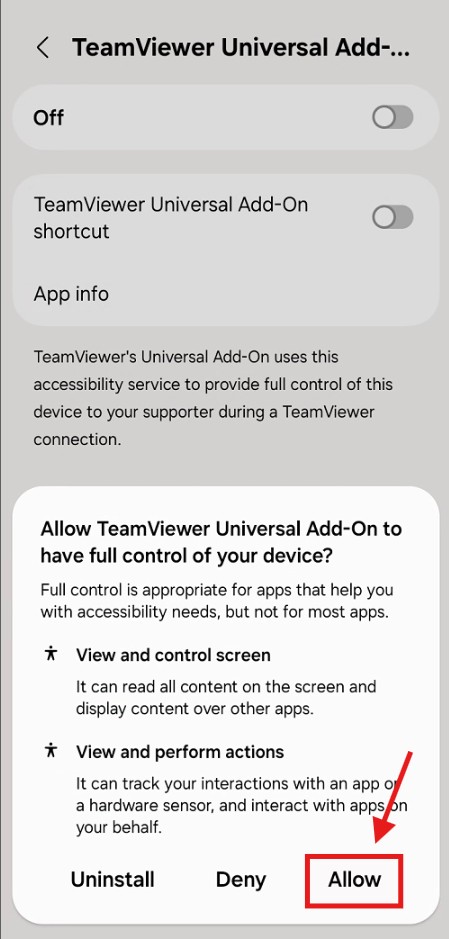
Allow Full Control
Android asks if you want to Allow TeamViewer Universal Add-On to have full control. Tap Allow to grant access.
Connection Active: You're All Set!
Your screen is now being shared. The DigiKaveri support person can see your screen and will guide you from here. You'll see the QuickSupport icon in the taskbar at the bottom.
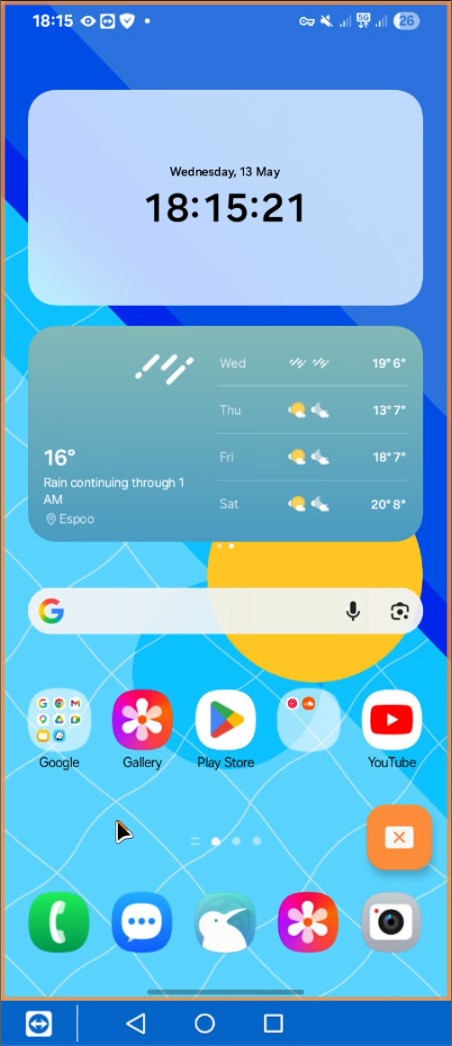


Note: Some devices might ask to install an Add-On for full remote control. Please accept the installation if prompted by the app.
